Monday, October 6, 2008

Week 6, Thing 14

#14 Getting not-so-technical with Technorati

So now that you’ve been blogging for awhile, you might be wondering just how big the blogosphere is. Well, according to Technorati’s annual report on blogs, State of the Blogosphere 2008 (issued in September 2008), 133 million blogs have been indexed by Technorati since 2002. 7.4 million blogs were posted in the 6 months prior to the report.

Blogging is so easy that these publishing tools are being taken advantage of by almost every industry, including libraries. Blogging has become a commercial enterprise – with many bloggers accepting advertising. Blogs have also become a trusted authority in both news and entertainment.

So how does a person get their blog listed as part of the blogosphere and how can you tag your posts with keywords to make them more findable through a Technorati search? The answer to the first question is that your blog is probably already being captured by Technorati due to the fact that you're already using Blogger, the most popular blogging tool. But if you want to join the party and have your blog officially listed on Technorati and also take advantage of the watchlist and other features, you’ll need to claim your blog yourself. As for tagging posts with Technorati tags? This is easy, too. All you need to do is add a little bit of HTML code to the bottom of your post (see the example below) and Technorati will pick up these tags when it spiders (or web crawls) your site. There are a lot of new features that have been added to Technorati this past summer, including new ways to search for blogs. You can search for keywords in blog posts, search for entire blog posts that have been tagged with a certain keyword, or search for blogs that have been registered and tagged as whole blogs about a certain subject (like photography or libraries).

Discovery Resources:
  • Technorati Tour –from 2006 of the Technorati features
  • Technorati Popular feature
  • Tehcnorati Help – includes FAQ, Discussions and Troubleshooting

Discovery Exercise:
1. Take a look at Technorati and try doing various keyword searches in the different search areas. Do you get different results depending on where you search?


2. Explore popular blog, searches and tags. Is anything interesting or surprising in your results?


3. Create a blog post about your discoveries on this site.

OPTIONAL: If you're up for a challenge, learn how to tag your posts by with Technorati tags so they can join tag searches. Create a post about something. It can be anything you want and add the HTML code to the bottom to tag it as “PLCMCL2.” You may also want to consider claiming your blog and creating a watchlist.

NOTE: When adding HTML code, you'll want to make sure you're in Blogger's Edit HTML window.

There's a lot to explore.

Technorati Tag: PLCMCL2

Continue on to Week 6, Thing 15

Week 6, Thing 13

#13 Tagging, folksomonies & social bookmarking in Delicious

Tagging is an open and informal method of categorizing that allows users to associate keywords with online content (webpages, pictures & posts). Unlike library subject cataloging, which follows a strict set of guidelines (i.e.Library of Congress subject headings), tagging is completely unstructured and freeform, allowing users to create connections between data anyway they want.

In the past few weeks, we’ve already explored a few sites – Flicker and LibraryThing to name two --that allow users to take advantage of tagging and in week 3 some even used a common tag (owhatageek) to create an association between photos that we individually uploaded. This week, in addition to exploring Technorati tagging, we want to also take at popular social bookmarking site called Delcious (formerly known as Del.icio.us).

Delicious is a social bookmarking manager which allows you to bookmark a web page and add tags to categorize your bookmarks.

Many users find that the real power of Delicious is in the social network aspect, which allows you to see how other users have tagged similar links and also discover other websites that may be of interest to you. You can think of it as peering into another users’ filing cabinet, but with this powerful bookmarking tool each user's filing cabinet helps to build an expansive knowledge network.

For this discovery exercise, you are asked to take a look at Delicious and learn about this popular bookmarking tool.

Discovery Resources:

  • Otter Group Delicious tutorial (8.30 min podcast with visuals) – Although this is from 2006 it presents a good overview of Delicious and why it is a useful tool.
  • Us.ef.ul: A beginners guide to Delicious – This is from 2005 but it presents useful information on getting started with Delicious.

Discovery Exercise:
1. View one of the Discovery Resources listed above to get a good overview of the features in Delicious.


2. Take a look around Delicious using the PLCMCL2 account that was created for the original 23 Things exercise by Helene Blowers. Note: In this account you will find lots of resources that have been highlighted or used throughout the course of the Learning 2.0 program.


3. Explore the site options and try clicking on a bookmark that has also been bookmarked by a lot of other users. Can you see the comments they added about this bookmark or the tags that they used to categorize this reference?


4. Create a blog post about your experience and thoughts about this tool. Can you see the potential of this tool for research assistance? Or just as an easy way to create bookmarks that can be accessed from anywhere?


OPTIONAL: If you’re up to the challenge, create a Delicious account for yourself and discover how this useful bookmarking tool can replace your traditional browser bookmark list. Also, talk with co-workers who have been using Delicious to see what they like about it. Some Geeks have already posted on using Delicious – ask them questions.

Continue on to Week 6, Thing 14.

Friday, September 26, 2008

Week 5, Thing 12

#12 Roll your own search engine

Do you have a group of websites that are your favorites? Or a set of online resources that are similar that you frequently use to answer homework or reference questions? Well Rollyo may be the tool for you. Rollyo allows you to create your own search tool for the just the websites you know and trust.

Take a look at some of these search rolls that have already been created:


Try a search for broad terms like "homework” or “history” to see results listed from multiple sites.


One of our own Geeks has a post on her blog, OPL’S PSA: Omaha Library’s Passably Sane Assistant on Rollyo


Discovery Exercise:
1. Explore Rollyo and create an account for yourself.


2. Create a search roll for any subject you like.


3. Create a post in your blog about your experience and link to your search roll. Can you see a potential use for tools like this?


OPTIONAL: Add your search roll to your blog using the "Create a Searchbox" tool.

Rollyo - You just never know when this little tool might come in handy.

Week 5, Thing 11


#11 A thing about LibraryThing


Are you book lover or cataloger at heart? Or do you enjoy finding lost and forgotten gems on the shelf to read? Then LibraryThing may be just the tool for you. Developed for booklovers, this online tool not only allows you to easily create an online catalog of your own it also connects you to other people who have similar libraries and reading tastes. Add a book to your catalog by just entering the title -- It’s so easy that you don’t even need MARC record training to do it – or connect with other users through your similar reading tastes. There are lots of ways to use LibraryThing. You can even view your books on a virtual shelf, add a widget to display titles that are in your catalog or install a LT Search box on your blog.


So why not join the ranks and create your own library online. With over 65,000 registered (BTW: LibraryThing also has group forum for librarian users) and over 4.7 million cataloged books, you're bound to discover something new.

A recent development for LibraryThing is LibraryThing for Libraries. This adds some of the Web 2.0 aspects of LibraryThing to the library catalog – it brings in LibraryThing’s users’ tags (edited to exclude things like beach read), word clouds, ratings & reviews. Danbury Public Library was the first libraries to use LibraryThing for Libraries.


Discovery Resources:


Discovery Exercise:


1. Take a look around LibraryThing and create an account.

2. Add a least 5 books to your library.


3. Blog about your findings and be sure to link to your LibraryThing catalog.


Continue to Week 5, Thing 12

Thursday, September 25, 2008

Week 5, Thing 10


#10 Play around with Image Generators

Generators? No, not those gas powered back-up things. These generators allow you to easily manipulate image and graphics to create fun images like those shown here (and which you've seen in earlier posts too).

For this discovery exercise, just have fun. Find a few fun image or text generators to play around with and write a post in your blog about one of your favorites and display the result. Often adding the image you mocked up to your blog is as simple as copying and pasting code that the page provides. If not, you may just need to right click on the image and then save it to your hard drive before using Blogger’s image button to add it to your post (which is what I did for this post). If you’re having difficulty getting your image added to a post in your blog, ask a co-worker for help. In looking at several staff blogs, it’s easy to see that we have lots of people in the system who have figured out how easy it is to add images to their blogs.
Discovery Resources:
  • The Generator Blog (this has tons of generators, scroll through the list on the left side)
  • Letter James (this has some generators in things like e-Cards and it is mainly free)
  • FD Toys (this is the same as the Flickr mashups from Week 3)
  • Wordle (this takes text from a link and makes an image – thanks to Nikki for suggesting this one earlier)

Also try searching for online generators, text generators or image generators!


Discovery Exercise:

1. Play around with some image generators and find one that you like.

2. Post the result of your discovery process in your blog. Note: Be sure to include a link to the image generator itself, so other participants can discover it too.


So take some time and have fun with this exercise. And remember to be tasteful too!


* Images created with Birthday Cake and Classic Car Grill Sign found on The Generator Blog


Continue to Week 5, Thing 11

Monday, September 22, 2008

Week 4, Thing 9

#9 Finding Feeds

Now that you have a newsreader (your Bloglines account), you can begin adding other newsfeeds that interest you. There are several ways you can locate newsfeeds:

  • When visiting your favorite websites -- look for news feed icons that indicate the website provides it. Often a feed icon will be displayed somewhere in the navigation bar of the site. (Here's an image that contains a sampling of several feed icons).
  • Use Blogline's Search tool - Bloglines search tool lets you search for news feeds in addition to posts, citations and the web. Use the Search for Feeds option to locate RSS feeds you might be interested in.


Other Search tools that can help you find feeds:

  • Topix.net - This search tool allows you to locate recent newsfeed items based upon keyword or phrase searching. The tool focuses specifically on news and media outlet RSS feeds for information, not weblogs.
  • Syndic8.com - Syndic8 is an open directory of RSS feeds that contains thousands of RSS feeds that users have submitted.
  • Technorati - Technorati is a popular blog finding tool that lets you search for blogs. Since RSS feeds are inherent to all blogging tools, Technorati Blog Search can help you find RSS feeds for topic specific blogs you may be interested in. Additional Resource: Technorati Tutorial on finding and adding your blog

Discovery Exercise:
Explore some of the search tools noted above that can help you locate some news feeds.

Create a blog post about your experience. Don't know what to blog about? Here some questions to think about ...

Which method of finding feeds did you find easiest to use?
Which Search tool was the easiest for you?
Which was more confusing?
What kind of useful feeds did you find in your travels?
Or what kind of unusual ones did you find?
What other tools or ways did you find to locate newsfeeds?

Friday, September 19, 2008

Week 4, Thing 8


#8 Make life "really simple" with RSS & a newsreader


You’ve heard of RSS? You’ve seen those small funny tags on websites? You’ve heard co-workers and acquaintances swear by it, but still have no idea what RSS is? That’s okay. According to a 2006 survey you’re still in the majority. Now if you Google RSS Feeds you will get over 756,000,000 hits. In the information world, RSS has not only revolutionized the way news, media and content creators share information, but it has also changed the way everyday users are consuming information.

RSS, according to one definition, stands for “Really Simple Syndication” and is a file format for delivering regularly updated information over the web. You can check out a Wikipedia article or there is website WhatisRSS.com. Some of you may also have taken Michael Sauers’s (from the Nebraska Library Commission) workshops on RSS feeds. The NLC has some additional information on RSS with links to more pages explaining this tool.

Have you ever wondered how would you keep up with a blog? Let’s skip the question of why you would – but if you were interested in a blog or a website that was updated at various intervals, you would have to visit every day or every few days, just to keep up! Think about the websites and news information sources you visit every day. It takes time to visit those sites and scour the ad-filled and image-heavy pages for just the text you want to read, doesn’t it? Now imagine if you could visit all those information sources and web pages in just one place and all at the same time … without being bombarded with advertisingwithout having to search for new information on the page you’d already seen or read beforeand without having to consume a lot of time visiting each site individually. Would that be valuable to you? Well, it’s available now through a newsreader and RSS.

This week’s discovery exercises focus on learning about RSS news feeds and setting up a Bloglines account (a free online newsreader) for yourself to bring your feeds together. If you prefer you can set up an account with Google Reader or Newsgator but the information provided here is for setting up a Bloglines account. You can always follow directions on the other sites if you prefer. If you want one less username/password combo to remember Google Reader as you can use the same combo that you used to set up your blog.

Discovery Resources:
  • Feed Me: A gentle introduction to Internet feeds - a tutorial from Palinet, a library cooperative. Some information may have changed since this tutorial was created.
  • Using Bloglines Tutorial (how to keep up with dozens of blogs everyday) – This online tutorial walks you through how to setup a Bloglines account and add newsfeeds. Follow Steps 1 to 3 to set up your Bloglines account. (Steps 4 – 9 are optional and cover how to subscribe to different types of feeds (podcasts, Flickr albums, etc.)). Again, some information may have changed since this blog post/tutorial was created.
  • RSS in Plain English: A simple and user friendly overview of RSS created by Commoncraft Video on Youtube.
  • Adding RSS Feeds to Bloglines - A short YouTube video created by Helene Blowers showing how to add feeds in Bloglines.
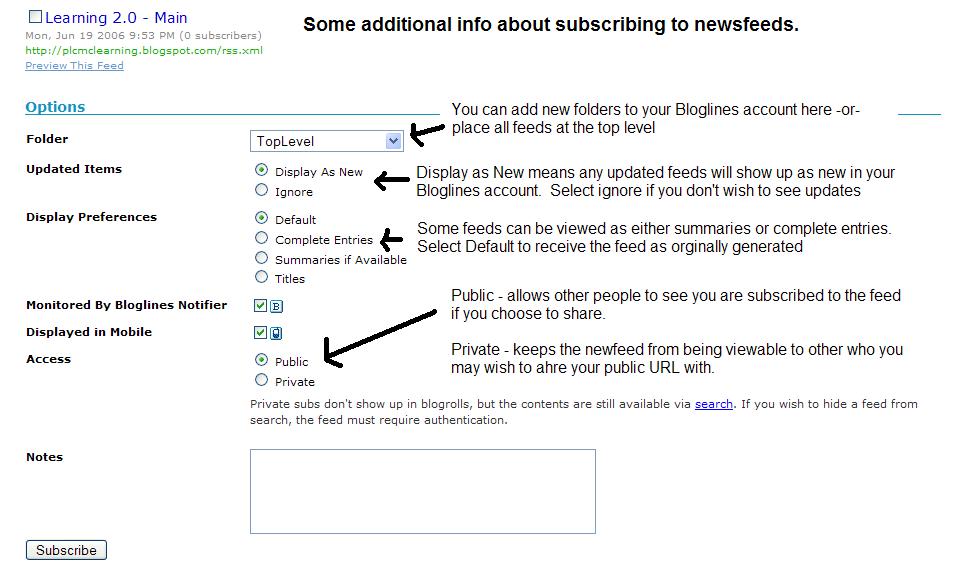
  • Additional Bloglines news feed subscription information (screenshot image)
  • Your co-workers - tap into their knowledge or work through your discovery process together. Several OPL staff have already attended Michael Sauer’s workshops on RSS as noted earlier - seek them out and ask them to show what they know.

    Discovery Exercise:

1. Follow the discovery resources above to learn more about RSS and newsreaders.

2. Create a free online Bloglines account for yourself and subscribe to at least 10 feeds to your reader. See Using Bloglines Tutorial steps 1-3 for instructions.

Feeds:
Try adding a few other types of feeds from various library related or other sources (you may like to select a couple from the list below)

Blogs:

  • Subscribe to several of your co-workers' feeds. This is as easy as typing the blog URL into the subscribe field in Bloglines. Or go to your friends' blogs, click on the 'subscribe' or 'atom' button at the bottom of the page. Try it, it's easy!
  • You can subscribe to blogs in Blogger. Sign in to your Blogger account – this will take you to your dashboard or click on your profile on your blog – scroll down and see the reading list? Here you can add the blogs of your co-workers. Open up O! What a Geek in a separate screen and choose which blogs you want to follow (you can also hide your reading list from others if you wish).

3. Create a post in your blog about this exercise.

Don’t know what to blog about? Think about these questions:

  • What do you like about RSS and newsreaders?
  • How do you think you might be able to use this technology in your work or personal life?
  • How can libraries use RSS or take advantage of this new technology?

PS: Once you tackle this discovery exercise, you've tackled the most difficult one of the whole 23. :)

Continue on to week 4, thing 9